
P999 Game download takes about two minutes on Android: download the APK from your portal’s page, allow your browser to install unknown apps, tap Install, then log in with your mobile number and OTP. On iPhone and PC there is no file to download — you play the same game in the browser. This walkthrough takes you through every screen on each device, explains the security warnings you’ll see, and shows how to check the file before you open it.
Looking for version numbers, file size or update details instead? Those live in our P999 APK download guide. New to the app altogether? Start with What is P999 Game?
Before You Download: Quick Checklist
- Android 7.0 or newer — older phones may fail to install or run the app
- 150MB free storage — the APK is roughly 15–40MB, plus room for the installed app and game data
- The right portal — download from the portal you will register on; accounts don’t move between P999 sites (see which P999 website is real)
- A stable connection — a dropped download often produces a corrupt file that won’t install
- VPN off — VPNs can interfere with both the download and the OTP later
P999 Game Download on Android, Step by Step
- Open your portal in Chrome. Type or paste the address of the P999 portal you’ve chosen. Avoid links from WhatsApp forwards or comments.
- Tap the Download / Download APK button. Chrome may warn that “this type of file can harm your device”. That warning appears for every APK outside the Play Store; tap Download anyway only if you’re on the portal you intended.
- Open the downloaded file. Tap the notification, or open Files → Downloads and tap the P999 APK.
- Allow installs from this source. Android shows “For your security, your phone is not allowed to install unknown apps from this source”. Tap Settings, switch on Allow from this source, then go back.
- Tap Install. If Play Protect shows a scan prompt, let the scan finish and read what it says before continuing.
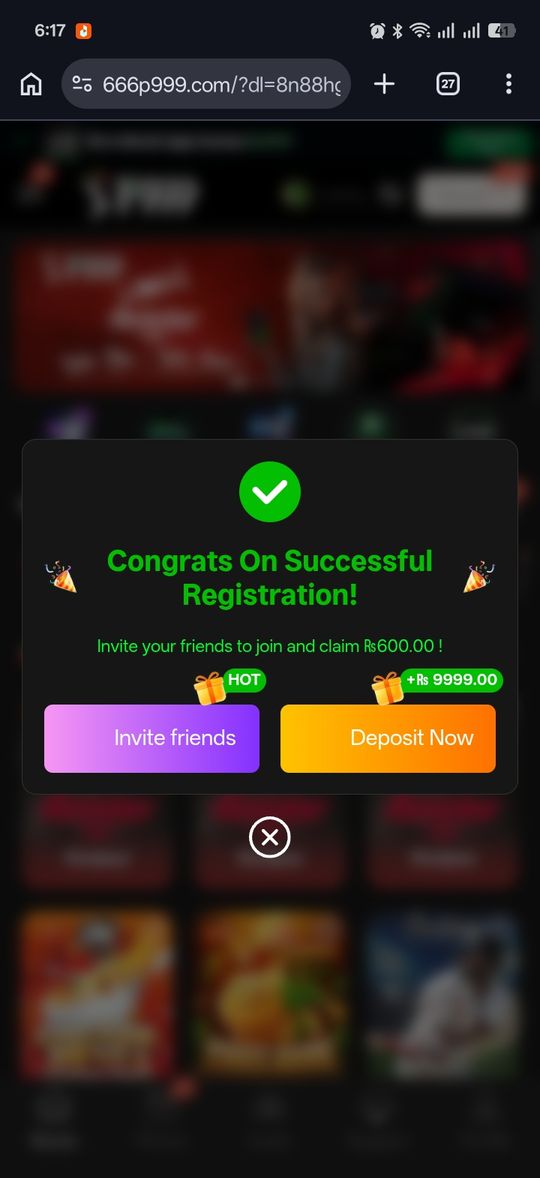
- Open P999 and log in. Enter your number as 03XXXXXXXXX and confirm the SMS code. The first confirmation creates your account.
- Switch the permission back off. Return to Settings → Apps → Special access → Install unknown apps and turn Chrome off again. You can re-enable it for future updates.
If any step fails — “App not installed”, “There was a problem parsing the package” or a blocked install — see P999 APK won’t install for fixes.
Exact Menu Names on Popular Phones
The “install unknown apps” switch lives in a slightly different place on each brand.
| Phone | Where to find the setting |
|---|---|
| Samsung (One UI) | Settings → Apps → ⋮ menu → Special access → Install unknown apps |
| Xiaomi / Redmi / POCO | Settings → Apps → Manage apps → Chrome → Install unknown apps |
| Infinix / Tecno / itel | Settings → Apps → Special app access → Install unknown apps |
| Oppo / Realme / Vivo | Settings → Privacy (or Security) → Install unknown apps |
| Stock Android / Pixel | Settings → Apps → Special app access → Install unknown apps |
P999 Game Download on iPhone
There is no P999 App Store app and iOS can’t install APK files, so “downloading” on iPhone means adding the web version to your home screen.
- Open the portal address in Safari
- Log in with your mobile number and OTP
- Tap the Share button, then Add to Home Screen
- Launch P999 from the new home-screen icon — it opens full-screen like an app
Any site offering a P999 “iOS download” or a configuration profile should be avoided. More detail in P999 on iPhone.
P999 Game Download on PC or Laptop
There is no Windows or Mac program. You have two options:
- Browser (simplest): open the portal in Chrome or Edge and log in. Use the browser’s device toolbar or a narrow window for a better phone-style layout.
- Android emulator: install an emulator such as BlueStacks, then drag the P999 APK into it. Heavier, but closer to the phone app.
See P999 on PC for the trade-offs.
How to Check the File Is Safe
Because the APK comes from outside the Play Store, a few checks are worth the extra minute.
- Source: did it come from the portal’s own domain, not a mirror, blog or file-sharing link?
- Size: a file far outside the 15–40MB range, or a 1MB “installer”, is a red flag
- Name: a file ending in
.apk.exe,.zipor.xapkfrom an unknown source should not be opened - Permissions: a gaming app has no reason to ask for SMS reading, contacts, accessibility services or device admin
- “Mod” or “hack” versions: never install them — they are a common way accounts and wallets get stolen (see P999 tricks and hacks)
Updating After You Download
P999 usually prompts you inside the app when a new build is available. Updating means downloading the newer APK from the same portal and installing it over the old one — your account and balance stay on the server, so nothing is lost. If the update fails with a conflict, uninstall the old app first and install the new file, then log in again with your number and OTP.